> ## Documentation Index
> Fetch the complete documentation index at: https://docs.contentmod.io/llms.txt
> Use this file to discover all available pages before exploring further.
# Discord
> How to start moderating your Discord server with ContentMod.
export const DiscordButton = () =>
 Open in Discord
;
Open in Discord
;
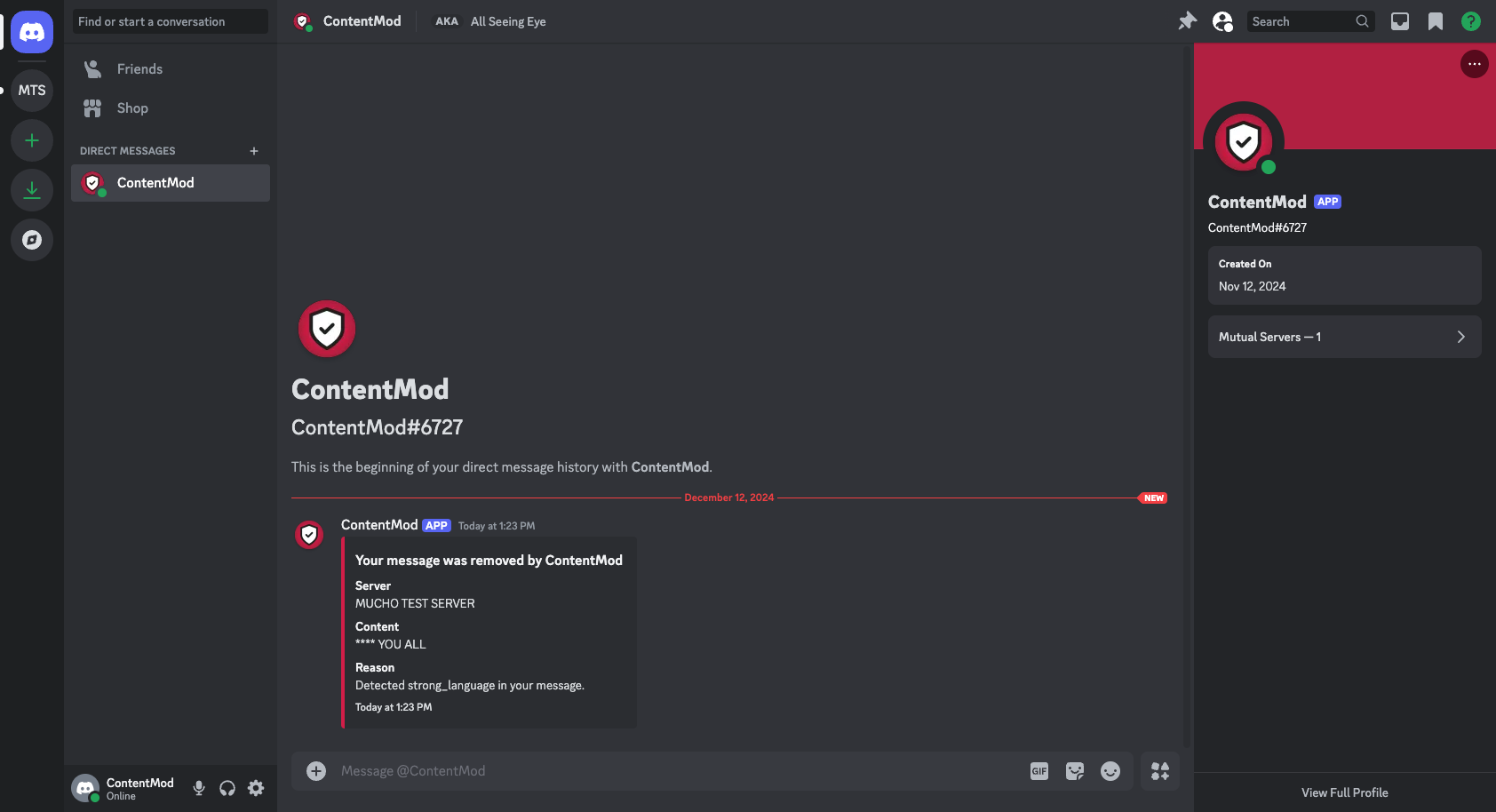 ## Getting Started
To get started with ContentMod on Discord, you will need to add our bot to your server. You can do this by clicking the button below:
Or by finding our app in the Discord App directory or by visiting this link:
[https://discord.com/application-directory/1305812211616452678](https://discord.com/application-directory/1305812211616452678)
## Connecting your Discord server
Once you have added the bot to your server, you will need to connect it to your ContentMod account. To do this, follow these steps:
1. Open the Discord server where you want to moderate.
2. In the chat, type `/connect` and press enter.
3. A message will appear asking to you to open the ContentMod dashboard. Click the link to open it.
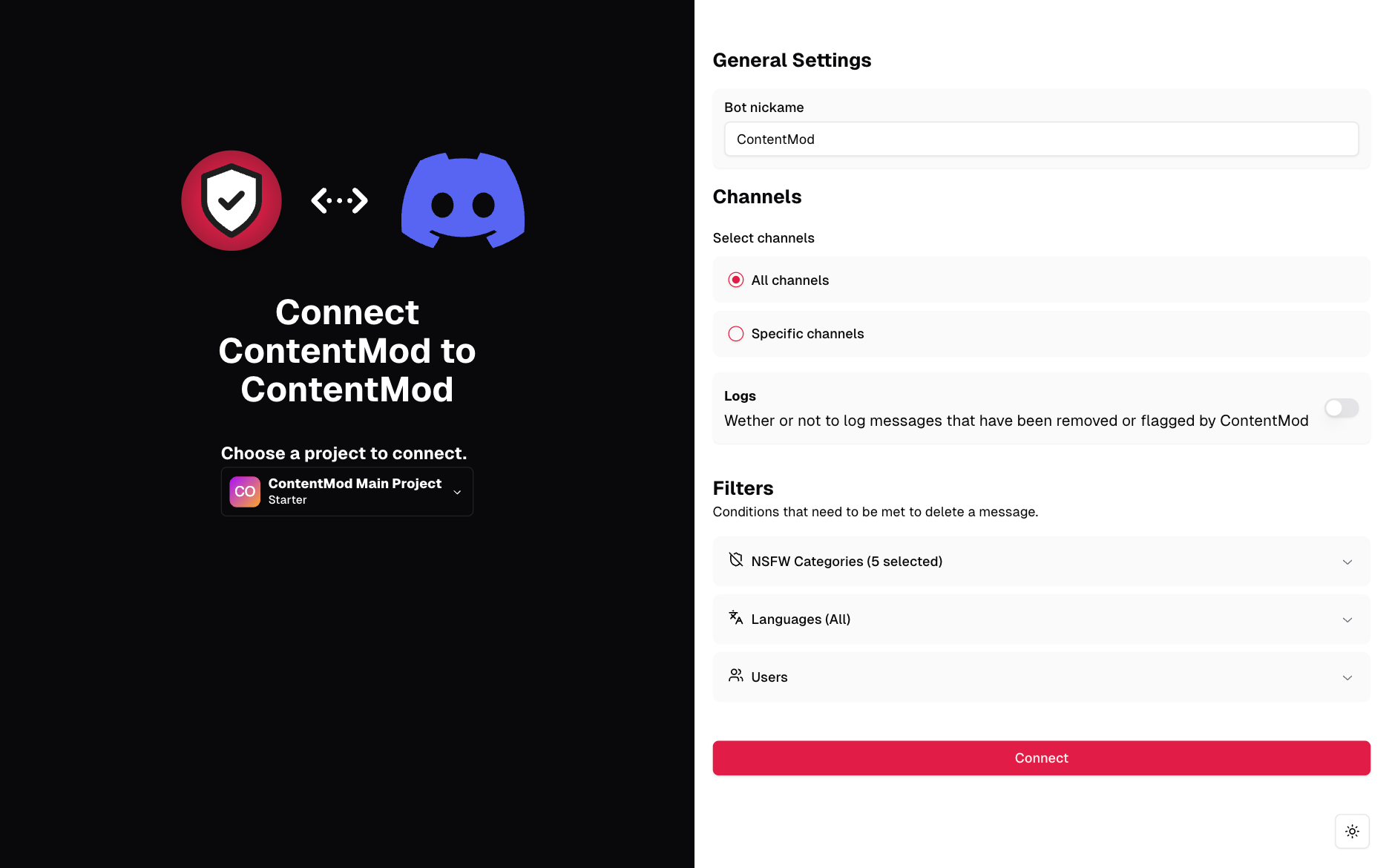
4. Once you have opened the dashboard and logged in you will be taken to the screen to connect your Discord server.
## Getting Started
To get started with ContentMod on Discord, you will need to add our bot to your server. You can do this by clicking the button below:
Or by finding our app in the Discord App directory or by visiting this link:
[https://discord.com/application-directory/1305812211616452678](https://discord.com/application-directory/1305812211616452678)
## Connecting your Discord server
Once you have added the bot to your server, you will need to connect it to your ContentMod account. To do this, follow these steps:
1. Open the Discord server where you want to moderate.
2. In the chat, type `/connect` and press enter.
3. A message will appear asking to you to open the ContentMod dashboard. Click the link to open it.
4. Once you have opened the dashboard and logged in you will be taken to the screen to connect your Discord server.
 ## Removing the app
If at any point you want to Disconnect the bot from your ContentMod account
You can write the following command in the Discord server:
`/disconnect`
Running this command will prompt you to confirm the action. Once you confirm, the integration will be removed.
To fully remove the app either uninstall the app in the Discord App directory or kick the bot from the server.
## Removing the app
If at any point you want to Disconnect the bot from your ContentMod account
You can write the following command in the Discord server:
`/disconnect`
Running this command will prompt you to confirm the action. Once you confirm, the integration will be removed.
To fully remove the app either uninstall the app in the Discord App directory or kick the bot from the server.